Search
Layers Module: Find, Preview, and Overlay Geospatial Map Layers on Occurrence Data
Learn how the Layers module finds geospatial map layers from public geo portals, previews them, and overlays them on species occurrence data.
The Layers module lets you find geospatial map layers published by external organizations, preview them, and display them on the map alongside your occurrence data.
Overview
The module crawls the geo portals of participating organizations and collects the map sources they publish. You can then search these sources, preview them, and add them as layers. Layers provide spatial context for occurrence data, for example by showing how species records relate to habitat types or protected areas.
Typical users are environmental researchers, GIS professionals, and others who work with ecological or environmental data.
Data sources
Layers come from public geo portals operated by organizations such as:
Environmental protection agencies (for example, the Swedish Environmental Protection Agency)
Geological surveys
Statistical offices
Available layers depend on what each portal publishes. The examples in this article use Swedish datasets, including natural reserves and habitat maps, but the module is not limited to Swedish institutions.
Finding and adding layers
Open the Layers module and start a search. The crawler needs about 10 to 15 seconds to retrieve map sources. Results appear when it finishes.
Browse the results. Where a layer has a preview, you can view it before adding it. Not all layers have previews.
Activate the layers you want and add them to the base map.
Working with layers on the map
Metadata
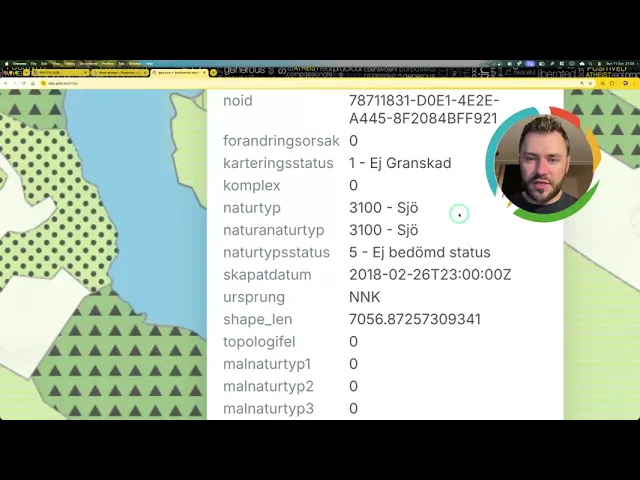
Polygons on a layer carry metadata, which you can view by clicking the polygon. The attributes available vary by dataset. For a natural reserve layer, for example, they include the reserve name and the year it was established. Habitat layers may include habitat type and related descriptions.
Combining layers
You can display several layers at once, such as natural reserves and habitats on the same base map. Overlapping polygons can make the map hard to read. To keep it legible, toggle layer visibility so that only the layers relevant to your analysis are shown.
Combining layers with occurrence data
Layers can be shown together with species occurrence data. Overlaying occurrences on a habitat layer, for instance, lets you compare the distribution of a bird species with habitat types and look for spatial patterns.
Limitations
Previews are not available for every layer.
Metadata content and structure depend on the source organization.
The initial crawl introduces a short delay before results appear.
FAQ
How long does it take for layers to load?
The crawler typically takes 10 to 15 seconds to return map sources after a search is started.
Can every layer be previewed before it is added?
No. Many layers, including natural reserves, have previews, but some do not.
What metadata is available for polygons?
This depends on the dataset. Common attributes include names, establishment dates, and habitat types.
Can different types of layers be combined?
Yes. You can overlay multiple layers and toggle their visibility as needed.
Are data sources limited to Swedish organizations?
No. The examples here use Swedish sources, but the module can retrieve layers from environmental, geological, and statistical agencies elsewhere.
A few notes on the rewrite:
The product name isn’t given in the source, so I used “Layers module” throughout. Replace it with the official name and add UI labels (button and menu names) where you have them.
I removed promotional phrasing (“powerful tool”, “encouraged to experiment”) and kept only what the source states. The “Limitations” section restates points from the FAQ in one place, which is a common documentation pattern.
If you want a task-oriented version instead (numbered steps with screenshots and expected results), I can restructure it that way.
Join our Community Forum
Any other questions? Get in touch